There’s no question that the Monster Hunter series has some incredible armor that not only looks the part but it is also crafted from the very behemoths that you take down.
However, you may have also spent a bunch of time in character creation, so showing off your hunter’s face may be what you’re after over a bulky helmet.
Whether you want to show off your custom character design or simply prefer a more immersive look, here’s how you can toggle your helmet’s visibility in Monster Hunter Wilds.
How to toggle your head armor off in Monster Hunter Wilds
Unfortunately, there’s not just a singular button you can hit to instantly toggle your helmet on and off in Monster Hunter Wilds and instead, you have to go into the game’s menus.
To hide your helmet, open the Options menu and navigate to the Game Settings tab. In this section, you’ll find an option labeled “Head Armor Visibility”, which allows you to toggle between “Hide In Cutscenes” or “Always Hide”.
Once you disable helmet visibility, your character’s helmet will no longer be visible, but all armor stats and effects will remain active.
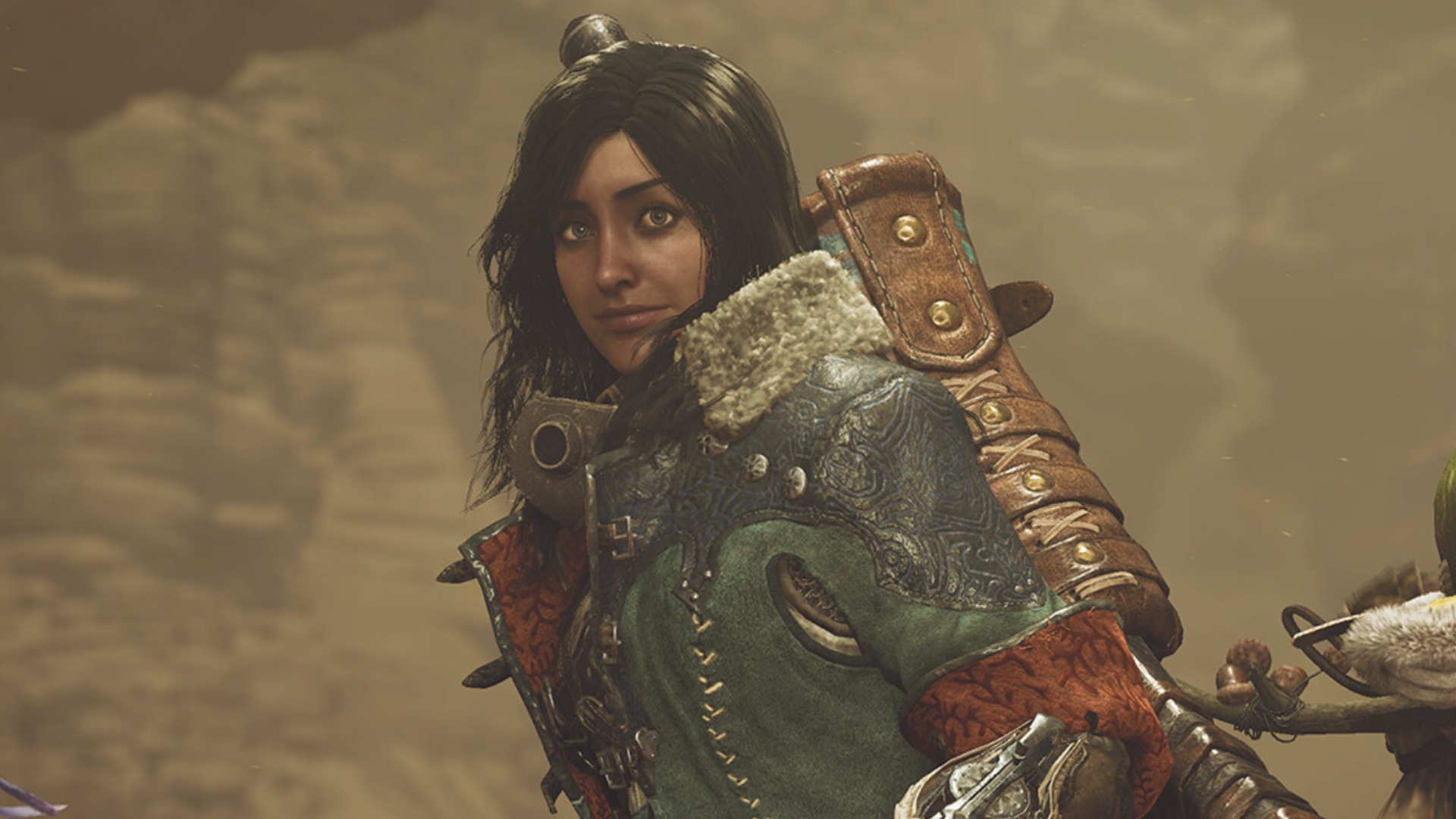
This means you won’t lose any defensive bonuses, resistances, or skills — only the appearance of the helmet will be hidden.
Each setting also applies to cutscenes, so if you choose to hide your helmet, your hunter will appear without it during cinematics as well.
This is a great option for those of you out there who want to see their character’s full expressions during the game’s story moments, rather than a random helmet that may not even be part of the full look you’re going for.
If you do want to put it back on at any point though, especially when picking up a particularly fancy looking helmet, you can just head into that same menu and turn it back to “Always Show” to see it in all its glory.